The Controller
The Controller is the main view of a room. You open it from the dashboard; its address is the room link app.stagetick.io/r/<room-id>. Here you build the rundown, run the timers, control the audience screens and send cues. It needs a signed-in member of the room's organisation (Team, roles & invitations).
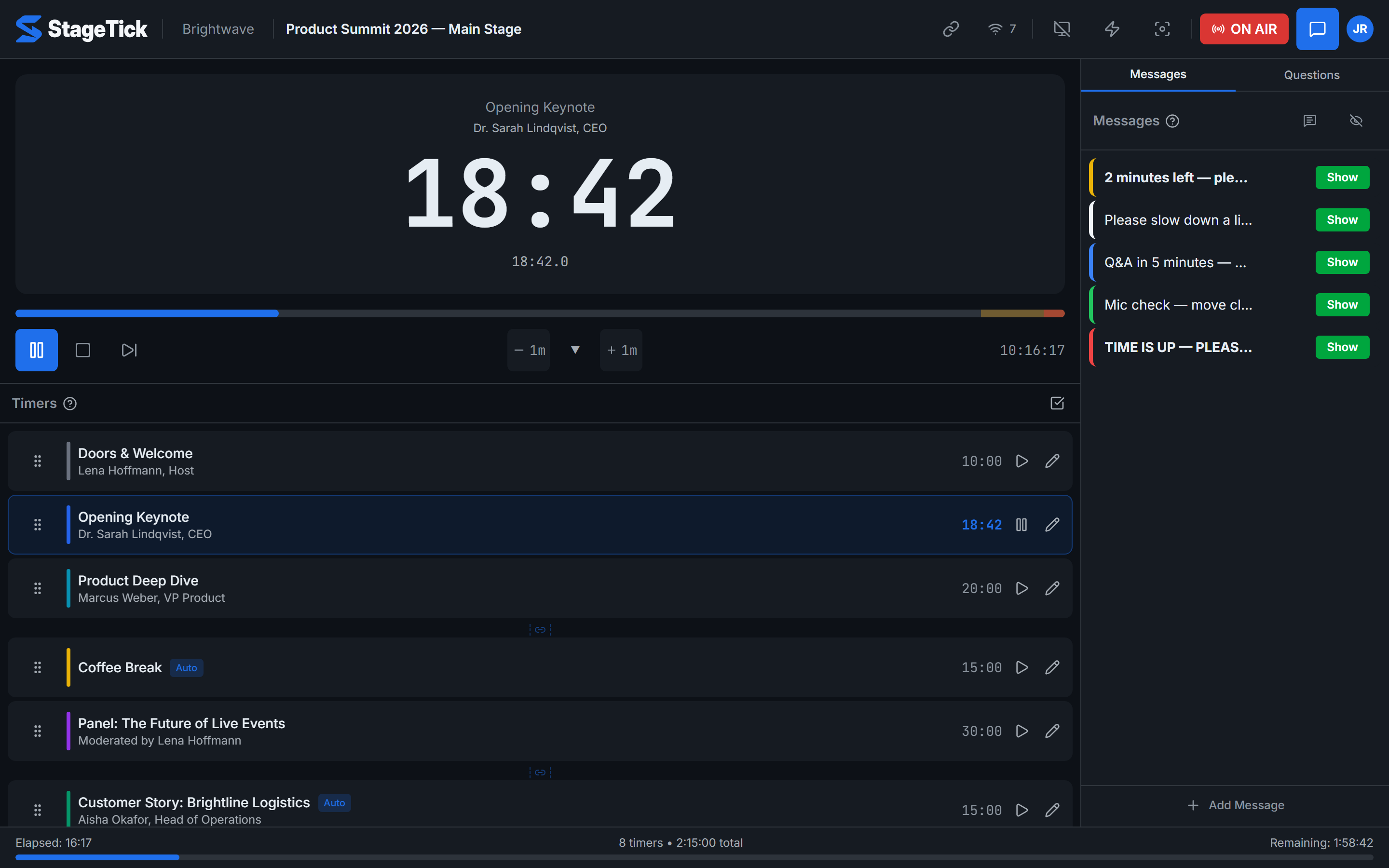
Header
From left to right on a desktop or laptop:
- StageTick logo — back to the dashboard.
- Organisation name (on wide screens) and room title — click the title to rename the room.
- Output links (link icon) — the links for all views of this room and the output password. See Sharing rooms.
- Connection badge (Wi-Fi icon with a number) — how many views of this room are open. Click it to rename, flash, reload or disconnect a device. See Connections. It turns red with a crossed-out Wi-Fi icon while this device is offline (Offline & reconnect).
- Blackout (B) — turns Viewer, Fullscreen, Agenda and Moderator black. Click again to bring them back.
- Flash screens — the Viewer, Fullscreen and Moderator screens flash for three seconds to catch the speaker's eye.
- Focus Mode — Fullscreen and Viewer show only the active message, large and fitted to the screen.
- "Press ? for shortcuts" — a hint that stays until you close it with ×. Press ? to open the shortcut list; Shortcuts in the room menu opens it too.
- ON AIR — until it is on (red), Viewer and Fullscreen show a standby screen with the room title.
- Toggle messages (speech bubble) — opens and closes the messages panel.
- Your avatar — the room menu.
Warnings such as "You are offline. Changes will not sync until reconnected." appear in a red bar above the header; the Controller stays usable while they are shown. What they mean: Offline & reconnect.
Preview and transport
The preview at the top shows the active timer with title, speaker and the time in its current phase colour, plus the same time with tenths of a second underneath. A message that is shown on the screens also appears at the bottom of the preview. Without an active timer it reads "No timer selected".
- Timeline — the bar under the preview. Click or tap it to jump to that point of the active timer.
- Play / Pause (Space) — with no active timer, Play starts the first timer of the list.
- Stop — stops the active timer.
- Next timer (Ctrl+→) — moves to the next timer in the list.
- Subtract time (−) and Add time (+) — change the active timer by the amount chosen in the ▼ menu: 5 s, 10 s, 15 s, 30 s, 1 min, 2 min or 5 min (default 1 min). Add time winds the elapsed time back, at most to the start of the timer. Details: Time adjustments.
- On the right: the current time of day.
Timer list
Every card shows a timer's title, speaker and duration. Use the play button on a card to start that timer and the pencil (or a double-click) to edit it. Drag the handle on the left to change the order. Auto marks a timer that starts when the previous one ends, a link symbol between two cards shows that chain, and a clock time marks an At clock time trigger. The select icon at the top of the list switches to multi-select for bulk actions. Add Timer sits below the list. Details: Managing timers, Timer triggers and Display modes.
Messages and questions
The panel on the right has two tabs. Under Messages you add cue messages and put one on the screens with Show; the icons at the top switch Show messages on viewer on or off and hide all messages. Questions (Pro) holds the audience questions, the QR code for your audience and the controls to put a question live. On the Free plan the tab carries a crown and stays locked. On a phone the panel covers the whole screen. Details: Cue messages and Audience questions.
Show progress
The bar at the bottom shows the whole rundown: Elapsed, the number of timers with their total duration, and Remaining.
Room menu
Click your avatar at the top right:
- Organisation Settings — plan, team, webhooks and your account. See Settings.
- Import (Pro) and Export — see Import / Export.
- Logs (Pro) — the activity log of this room. See Audit log.
- Shortcuts — the list of keyboard shortcuts. See Keyboard shortcuts.
- API Keys (Pro) — keys for this room. See Webhooks & API keys.
- Time Format — how the big timer is written for this room: Auto, HH:MM:SS, H:MM:SS, MM:SS, M:SS or Verbose (2h 30m 15s).
- Onboarding anzeigen — shows the short introduction again. The app labels this item in German.
- Your email address and Sign out.
On the Free plan, items marked with a crown open the Settings page, where the owner can upgrade (Billing & subscription).
On a phone
On screens narrower than 768 pixels the header keeps the logo, the room title, ON AIR, Toggle messages and the room menu; the organisation name and the "Press ? for shortcuts" hint are hidden. Blackout, Flash, Focus Mode, the output links and the list of connected devices move under ⋮ More controls. Below 640 pixels, as on most phones, ON AIR shows only its icon.
Controller or Operator?
The Controller is the full editing view. The Operator view (/r/<room-id>/operator) is a separate, simplified remote for a phone or tablet: previous, current and next timer, transport, ON AIR, blackout and a numpad for time changes. Both need a signed-in member, and both count as a connected device. Keyboard shortcuts work only in the Controller.