Managing Timers
Timers are the building blocks of your show. Each timer represents a segment — a speaker slot, a break, a panel discussion — with its own duration, display settings, and trigger rules.
Creating a timer
From the operator view, click the Add Timer button at the bottom of the timer list. A new timer is created with default settings, which you can then customize.
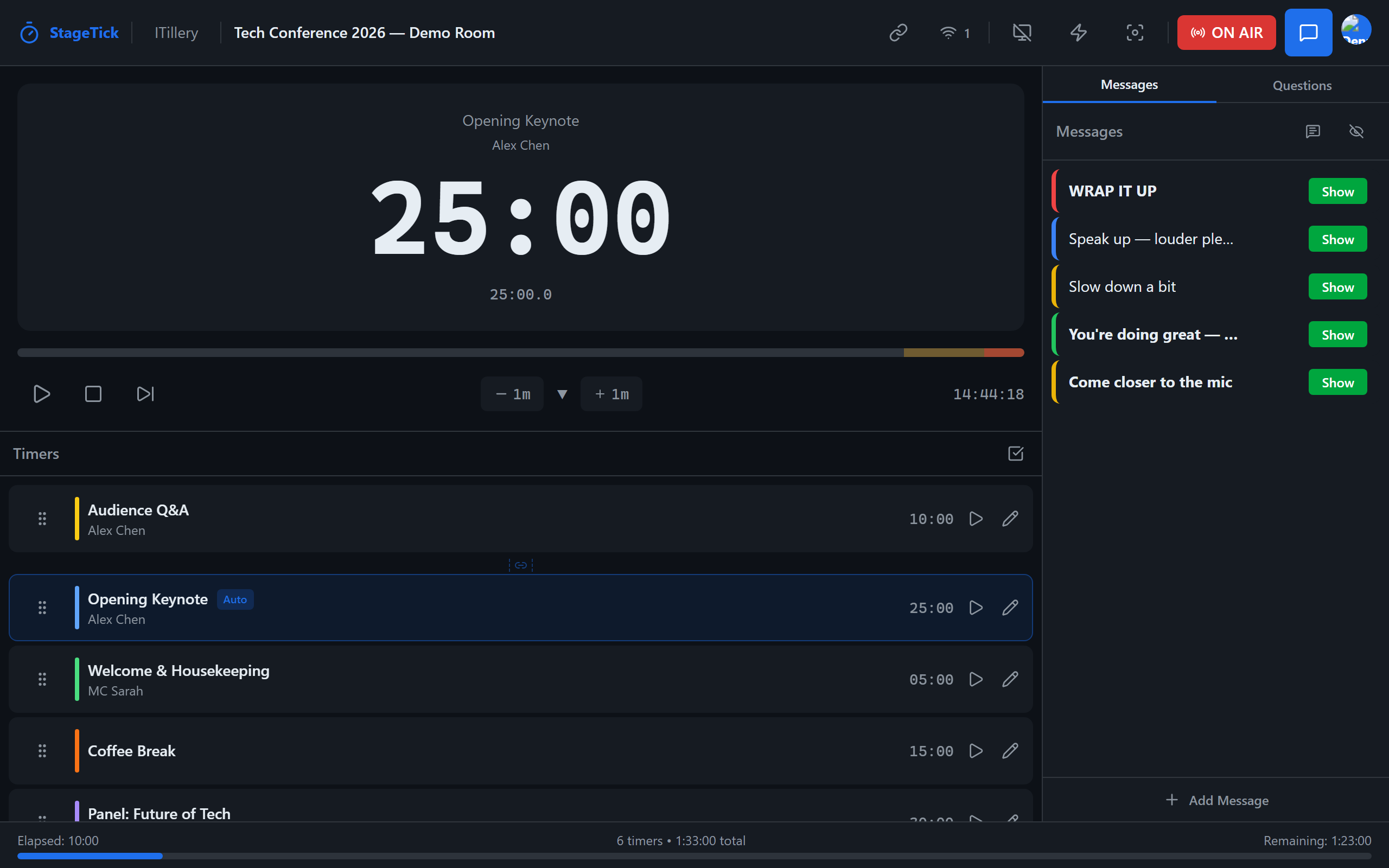
Timer fields explained
Title & Speaker
The timer title and speaker name are displayed on all output views. Use these to identify each segment at a glance — for example, "Keynote" with speaker "Jane Smith".
Duration
Set the total duration for this segment. Durations can range from 1 second to 24 hours. Enter the time in hours, minutes, and seconds.
Wrap-up time
The wrap-up time defines when the timer enters the warning phase. When the remaining time drops below this threshold, the display turns yellow to signal the speaker to start wrapping up.
Danger time
The danger time defines when the timer enters the danger phase. When the remaining time drops below this threshold, the display turns red to indicate the speaker is running out of time.
Label color
Assign a color to visually organize your timers in the list. This color appears as a stripe on the timer card in the operator view. It does not affect the output display.
Notes
Add private notes to a timer. Notes are only visible in the operator view and are never shown on output views. Use them for production cues, AV instructions, or reminders.
Flash on phase
When enabled (the default), all output views receive a 3-second visual flash effect whenever the timer enters the warning, danger, or overtime phase. Disable it per timer if you prefer color-only phase indicators.
Sound preset
Choose an audio cue that plays through the device speaker at each phase transition (wrap-up, danger, and overtime). Five sound presets are available: Beep, Chime, Bell, Pulse, and Escalate. Set per timer so you can use different sounds for different segments, or leave it on "None" (the default) to disable audio cues for that timer.
Editing timers
Double-click any timer card to open the Edit Timer dialog, then apply your changes with Save. In a cloud room, the dialog closes after the server confirms the save. While Saving… is shown, keep the page open. If you are offline, wait for the connection to return and saving to finish. If saving fails, the dialog keeps your changes and shows an error so you can try Save again. Each card also has a Play/Pause button that is always visible, so you can start or pause any timer directly from the list.
Duplicating timers
To duplicate a timer, open the timer menu (three-dot icon) and select Duplicate. A copy is created directly below the original with the same settings. This is useful when you have multiple segments with similar configurations.
Deleting timers
To delete a timer, open the timer menu and select Delete. The timer is removed immediately. If the deleted timer was currently active, playback stops.
Reordering timers
Drag and drop timers in the operator view to change their order. The order determines the sequence for auto-advance: when one timer finishes, the next timer in the list starts automatically (if configured).
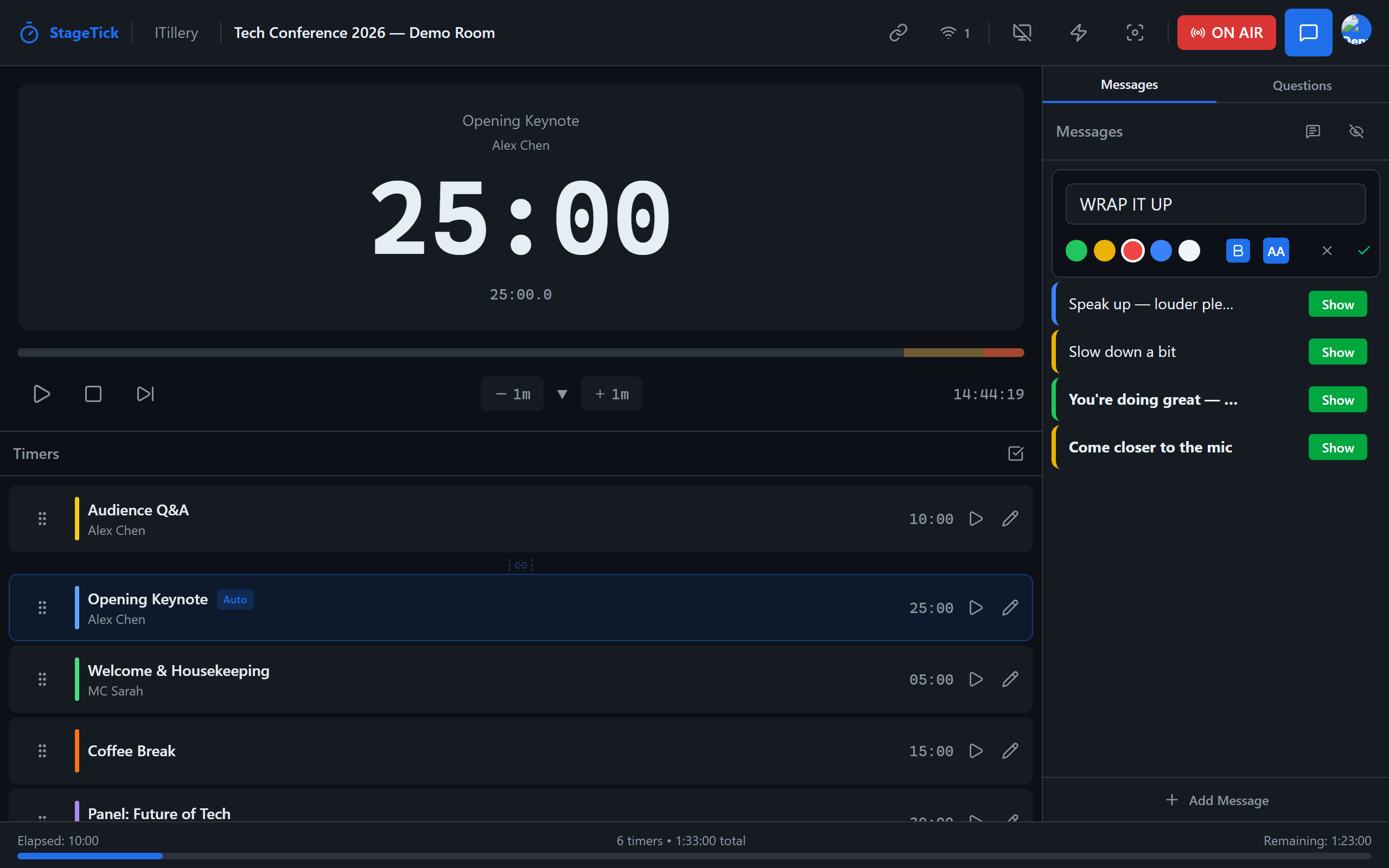
Select mode & bulk actions
For operations on multiple timers at once, enable Select mode by clicking the checkbox icon in the timer list header. In select mode, each timer card shows a checkbox. Click timers to select or deselect them (hold Shift to select a range).
When one or more timers are selected, a bulk action toolbar appears at the top of the timer list with the following actions:
- Move up / Move down — reorder selected timers as a group
- Set appearance — change the display mode for all selected timers (Countdown, Count Up, Time of Day, etc.)
- Link / Unlink — chain selected timers so they auto-advance in sequence, or remove existing links
- Duplicate — create copies of all selected timers
- Delete — remove all selected timers at once
Press Escape to exit select mode and clear the selection.
Timer phases
As a timer counts down, it progresses through four visual phases:
- Normal — the default state. The display shows the remaining time in a neutral color.
- Warning — triggered when the remaining time drops below the wrap-up threshold. The display turns yellow.
- Danger — triggered when the remaining time drops below the danger threshold. The display turns red.
- Overtime — triggered when the timer reaches zero and keeps running. The display flashes red and shows negative time.
Timer limits per plan
| Plan | Timers per room |
|---|---|
| Free | 6 timers |
| Pro | Unlimited |