Timer Triggers
Triggers control how and when a timer starts. You can start timers manually, have them start automatically when the previous timer ends, or schedule them to start at a specific wall clock time.
Manual trigger (default)
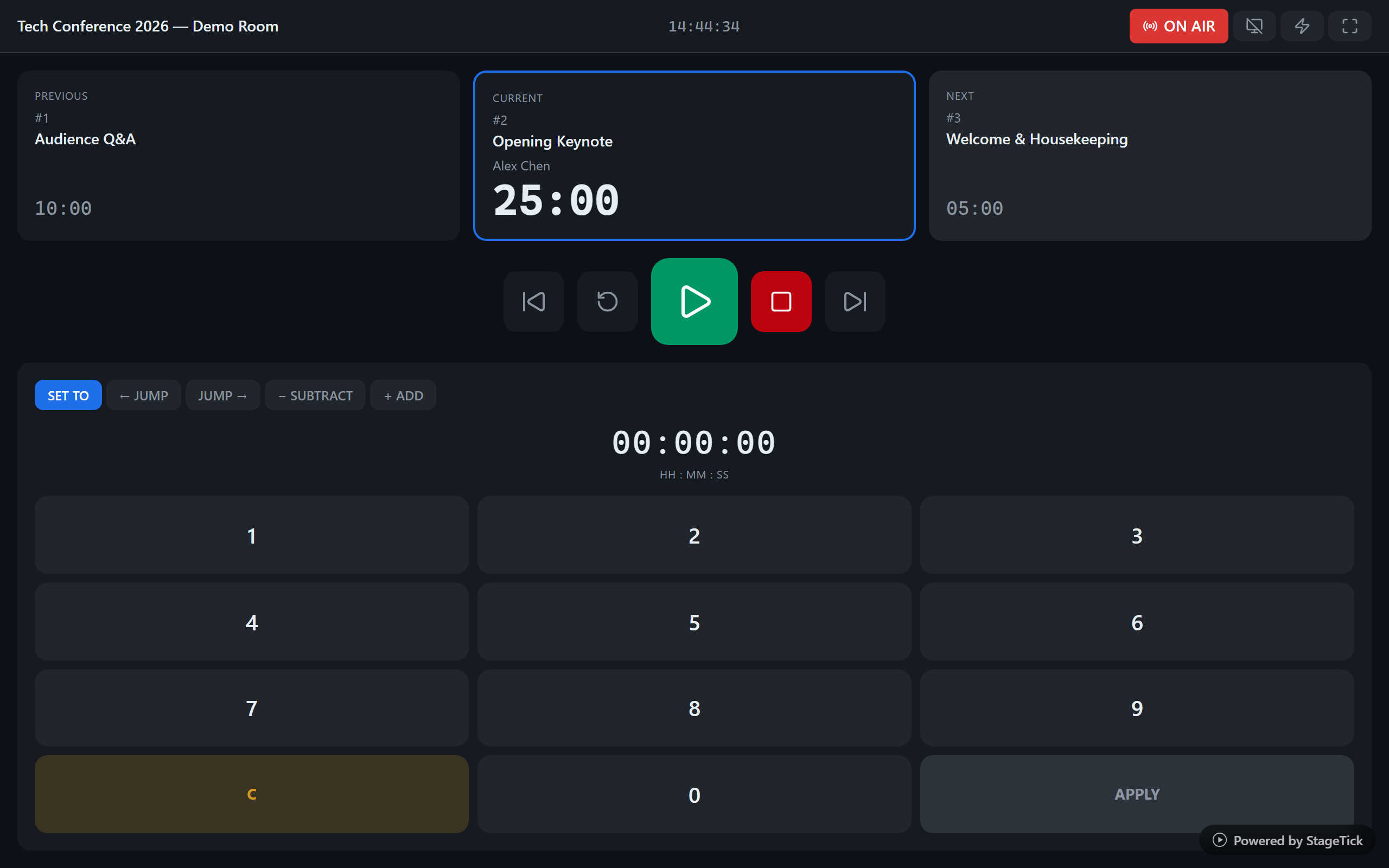
By default, every timer uses a manual trigger. The operator starts the timer by clicking the Start button or pressing the corresponding keyboard shortcut. This gives you full control over when each segment begins.
On Previous End
When set to On Previous End, a timer starts automatically as soon as the previous timer in the list finishes (reaches zero). This creates a seamless flow from one segment to the next without operator intervention.
This is ideal for tightly scheduled events where segments follow each other without gaps — for example, a conference with back-to-back talks.
At Time (scheduled start)
The At Time trigger starts a timer at a specific wall clock time. When you select this trigger, you also configure a target time — the exact time of day when the timer should begin.
This is useful for events that must follow a strict real-world schedule — for example, a live broadcast that starts at exactly 14:00.
How auto-advance works
When a timer finishes (countdown reaches zero), StageTick looks at the next timer in the list. If that timer's trigger is set to On Previous End, it starts immediately. This chain continues as long as consecutive timers have the "On Previous End" trigger.
The chain stops when it reaches a timer with a Manual or At Time trigger — the operator must then start it manually or wait for the scheduled time.
Mixing trigger types
You can mix trigger types within the same room to build flexible workflows. Here are some common patterns:
Fully automatic show
Set the first timer to Manual and all others to "On Previous End". Press Start once and the entire show runs through.
Manual with automatic breaks
Set talk timers to Manual and break timers to "On Previous End". The operator starts each talk, but breaks flow automatically after the talk ends.
Scheduled blocks
Use "At Time" for the first timer in each block (e.g., morning session at 09:00, afternoon at 14:00) and "On Previous End" for timers within each block.