Timer Display Modes
Each timer has a display mode that controls what the output views show. The timer always runs internally as a countdown, but you can change how the time is presented to the audience and crew.
Countdown (default)
The countdown mode shows the remaining time, counting down from the configured duration to zero. This is the most common display mode for stage timers.
When the timer reaches zero, it enters overtime and displays negative time (e.g., -0:15) to show how far over the speaker has gone.
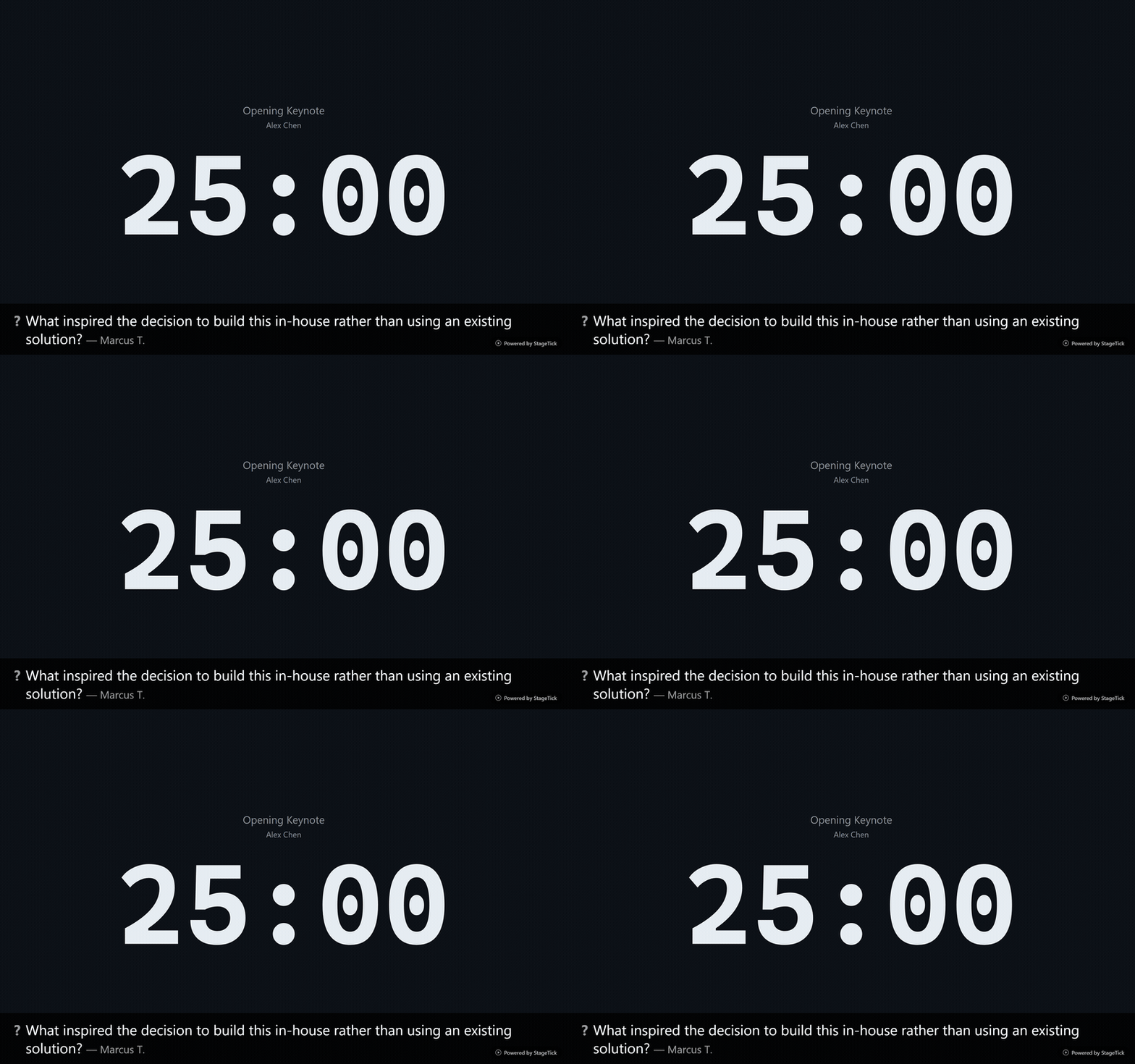
Count Up
Count Up mode shows elapsed time, starting from 0:00 and counting upward. The timer still has a configured duration and will progress through the normal, warning, and danger phases at the same thresholds — but the display shows how long the segment has been running rather than how much time is left.
Time of Day
Time of Day mode replaces the timer display with the current wall clock time (e.g., 14:32:05). The timer still runs in the background and progresses through its phases, but the audience sees only the current time. This is useful for large venue displays where a visible clock helps attendees track the schedule.
Count Up + Clock
Count Up + Clock mode shows the elapsed time as the primary display with the current wall clock time underneath. This is ideal for conferences where the speaker and audience benefit from seeing both how long the segment has been running and the current time of day.
Hidden
In Hidden mode, the timer runs and progresses through its phases, but the output display shows no time value — the screen appears blank (or shows only the timer title, depending on the view).
This is useful for segments where you want the operator to track timing internally without showing a countdown to the audience or speaker.
Countdown to Time
Countdown to Time mode shows the remaining time until a specific wall clock time (the configured target time). Instead of counting down from a set duration, it calculates how long until the target time is reached.
This is ideal for pre-show countdowns — for example, displaying "Show starts in 12:34" when the event begins at 14:00.
When to use each mode
| Mode | Best for |
|---|---|
| Countdown | Speaker slots, presentations, any segment with a fixed duration |
| Count Up | Panel discussions, open-ended segments, rehearsals |
| Time of Day | Venue clocks, lobby displays, schedule-aware screens |
| Count Up + Clock | Conferences, talks where both elapsed time and wall clock matter |
| Hidden | Internal timing segments, backstage-only tracking |
| Countdown to Time | Pre-show countdowns, "starting soon" screens |
Countdown Format
You can change how timer values are formatted across all output views. The format setting applies room-wide from the room menu.
| Format | Example |
|---|---|
| Auto (default) | 5:00 or 1:05:00 |
| hh:mm:ss | 01:05:00 |
| h:mm:ss | 1:05:00 |
| mm:ss | 05:00 |
| m:ss | 5:00 |
| Verbose | 1h 5m 0s |
Phase Cues
When a timer enters the warning, danger, or overtime phase, StageTick can trigger visual and audio cues. Both are configurable per timer in the timer settings.
Flash on phase (default: on)
A 3-second visual flash pulse on all output views, providing a noticeable signal beyond the color change. Disable it per timer if you prefer a subtler transition.
Sound preset (default: None)
Each timer can play an audio cue through the device speaker at each phase transition (wrap-up, danger, and overtime). Choose from five built-in sound presets:
- Beep — simple tone beeps that escalate in count (1/2/3) per phase
- Chime — softer melodic chime tones
- Bell — resonant bell sound
- Pulse — rhythmic pulse pattern
- Escalate — rising pitch pattern that increases urgency per phase
Audio cues fire at three phase transitions:
- Wrap-up — first cue when the timer enters the warning phase
- Danger — second cue when the timer enters the danger phase
- Overtime — third cue when the timer reaches zero
Global mute
The operator view includes a global mute toggle in the header bar. When muted, all audio cues are silenced regardless of per-timer sound settings. Press M to toggle mute quickly.
Accessibility
Audio cues respect the operating system's prefers-reduced-motion setting. When reduced motion is enabled, audio cues are automatically suppressed to avoid unexpected sounds.