Output Views
StageTick provides multiple synchronized views from a single room URL. Each view is purpose-built for a different role in your production — from the stage manager controlling timers to the audience submitting questions.
Available Views
Every room has a Controller plus six output views. Open any of them by appending the path to your room URL. All views stay in perfect real-time sync.
| View | URL Path | Best For | Key Features |
|---|---|---|---|
| Controller | /r/:roomId | Stage manager / TD | Full timer management, transport controls, messages, Q&A |
| Viewer | /r/:roomId/viewer | Audience / confidence monitor | Timer + agenda sidebar, clean display |
| Fullscreen | /r/:roomId/fullscreen | Stage display / speaker timer | Maximum visibility, phase colors, progress bar |
| Moderator | /r/:roomId/moderator | Show caller / producer | Message control, Q&A management, timer overview |
| Operator | /r/:roomId/operator | Dedicated timer operator | Transport controls, numpad, prev/current/next cards |
| Agenda | /r/:roomId/agenda | Crew coordination | Read-only schedule with start times, auto-highlights current item |
| Ask | /r/:roomId/ask | Audience members | Question submission form |
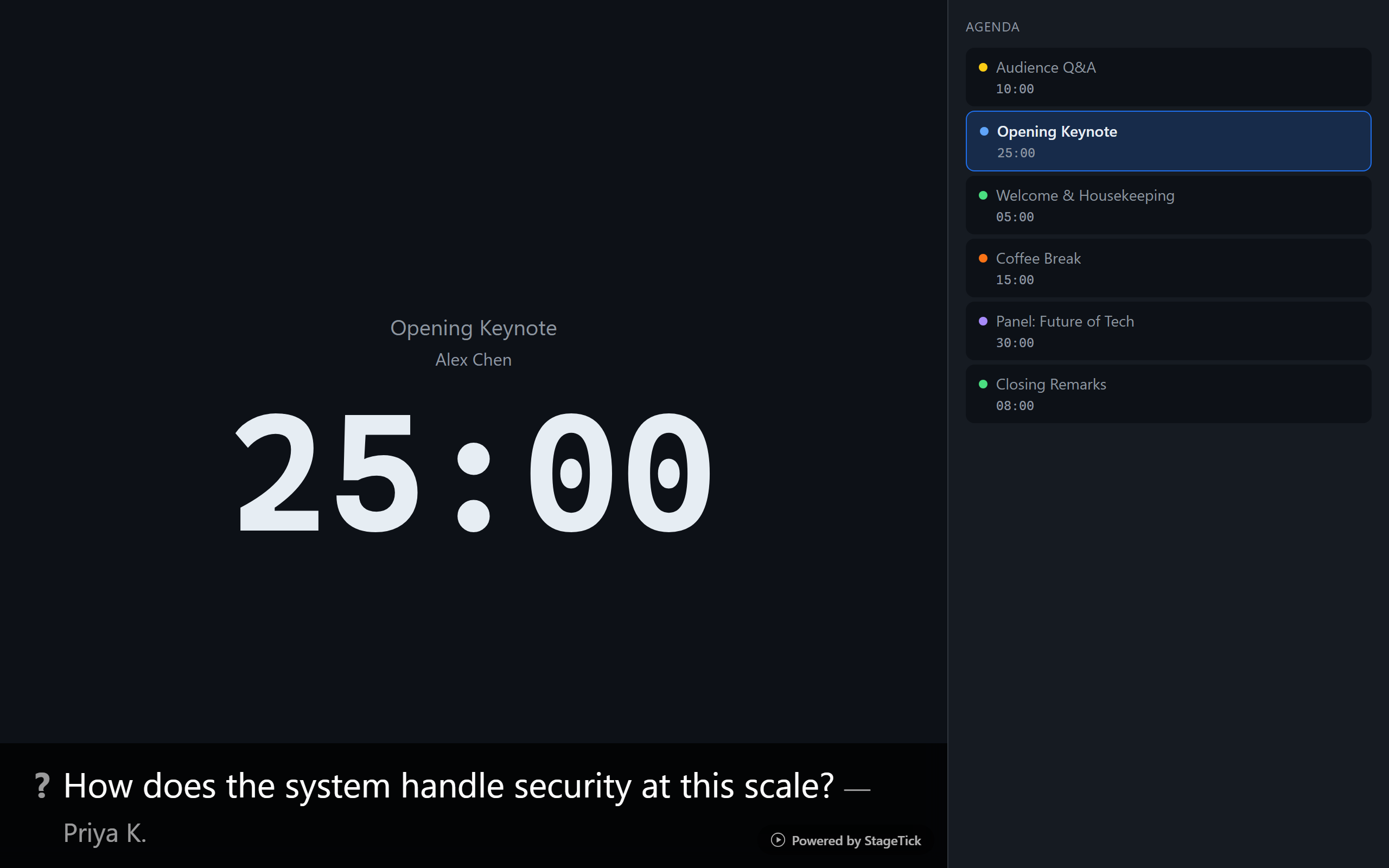
Focus Mode
Focus mode replaces the timer display with the active cue message, centered and filling the screen. Toggle it from the room header to draw attention to an important announcement. Focus mode affects the Fullscreen and Viewer output views.
URL Parameters
Add query parameters to any output URL to customize its behavior. These are especially useful for livestream integrations and teleprompter setups.
| Parameter | Values | Description |
|---|---|---|
| ?mirror= | h, v, both | Flip the display horizontally, vertically, or both. Useful for teleprompter rigs. |
| ?transparent=1 | 1, true | Makes the background transparent. Ideal for OBS/vMix browser source overlays. |
| ?delay= | 0–3600 (seconds) | Offsets the displayed time to match a broadcast delay. The timer appears behind by the specified amount. |
| ?hideControls=1 | 1, true | Hides interactive controls on the Moderator view. Useful for dedicated display screens. |
| ?name= | any text | Sets a custom device name shown in the connections list (e.g., "Stage Left Monitor"). |
/r/abc123/fullscreen?mirror=h&transparent=1&name=Teleprompter — mirrored, transparent overlay named "Teleprompter" in the connections list.
Access & Authentication
The Viewer and Fullscreen views are accessible without login — anyone with the room link can open them. The Controller, Moderator, and Operator views require authentication. The Ask view (audience question submission) does not require login.
Real-Time Sync
Connected views receive updates from the same room. When the operator starts a timer, the viewer, fullscreen display, and moderator panel update automatically. If a screen shows Live sync has stopped, its display may be out of date and changes may not be saved. Follow the connection recovery steps to deliberately reload the affected tab and check the room before continuing.
Standby Screen
When the room is not on-air, all output views display a standby screen. This gives you a clean holding state before your event begins or during breaks. Toggle the on-air status from the controller or operator view.
Blackout Mode
Blackout makes the Viewer, Fullscreen, Agenda, and Moderator screens completely black, including cue messages, titles, branding, and the agenda. It also takes priority over focus mode, flash effects, and the live-sync warning. Covering that warning does not restore synchronization. Timers keep running in the background; turning blackout off reveals the display again. Controller and Operator controls remain available.
Flash Effect
There are two types of flash in StageTick:
- Manual flash — triggered from the Flash button in the controller or operator view. Sends a 3-second visual pulse to all output views at once.
- Connection flash — triggered from the connections popup on a specific device. Flashes only that device, useful for physically locating a screen in the venue.
Additionally, timers can trigger an automatic flash when entering the warning, danger, or overtime phase. This is controlled per timer with the Flash on phase setting (enabled by default).