Creating a Room
A room is your workspace for a single event. It holds all your timers, messages, and settings in one place and gives you a shareable URL that your team can open in any browser.
Creating a room from the dashboard
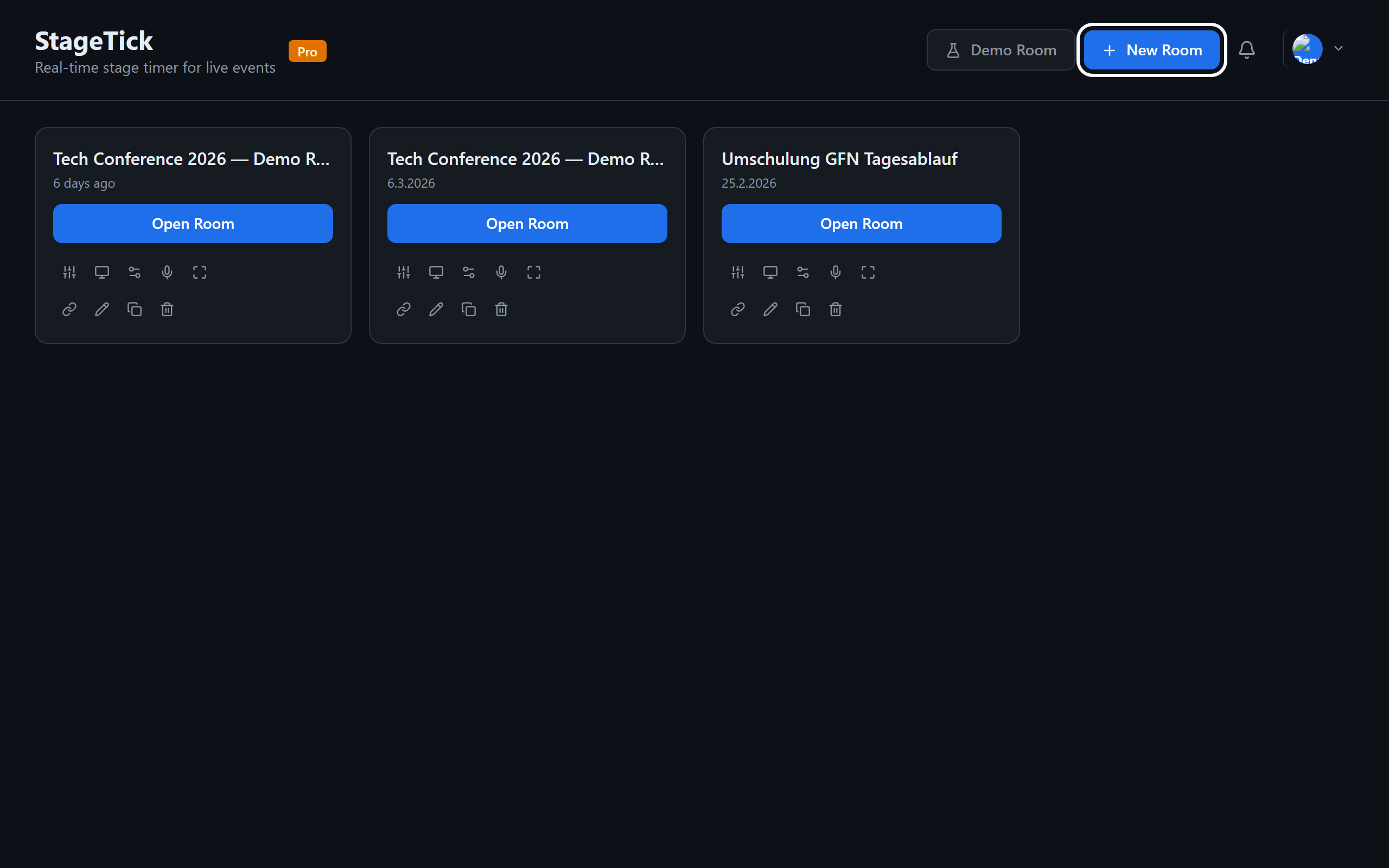
After signing in, the dashboard shows all your rooms. To create a new one:
- Click the New Room button in the top-right corner of the dashboard.
- StageTick creates an Untitled Room and opens its controller.
- Give the room a descriptive title for your event.
Room creation and duplication become available once your organisation and room list have loaded. While the dashboard shows Loading your organisation and rooms..., wait for loading to finish. If it takes longer than expected, choose Reload page to try loading this dashboard again. The same check applies after switching organisations.
Room title and settings
You can rename a room at any time by clicking the room title in the dashboard and typing a new name. The title is visible to everyone connected to the room.
Room-level settings — such as timer defaults, display preferences, and sharing options — are configured from within the room itself via the operator view.
Room URL structure
Every room has a unique URL based on its ID:
This base URL opens the default view. You can append a view type to open a specific output view directly:
/r/:roomId/viewer— Viewer (clean countdown)/r/:roomId/fullscreen— Fullscreen output/r/:roomId/moderator— Moderator view/r/:roomId/operator— Operator view
Deleting a room
To delete a room, open the room menu on the dashboard and select Delete. You will be asked to confirm. Deleting a room removes the room and its transport data permanently.
Room limits per plan
| Plan | Rooms |
|---|---|
| Free | 3 rooms |
| Pro | Unlimited |